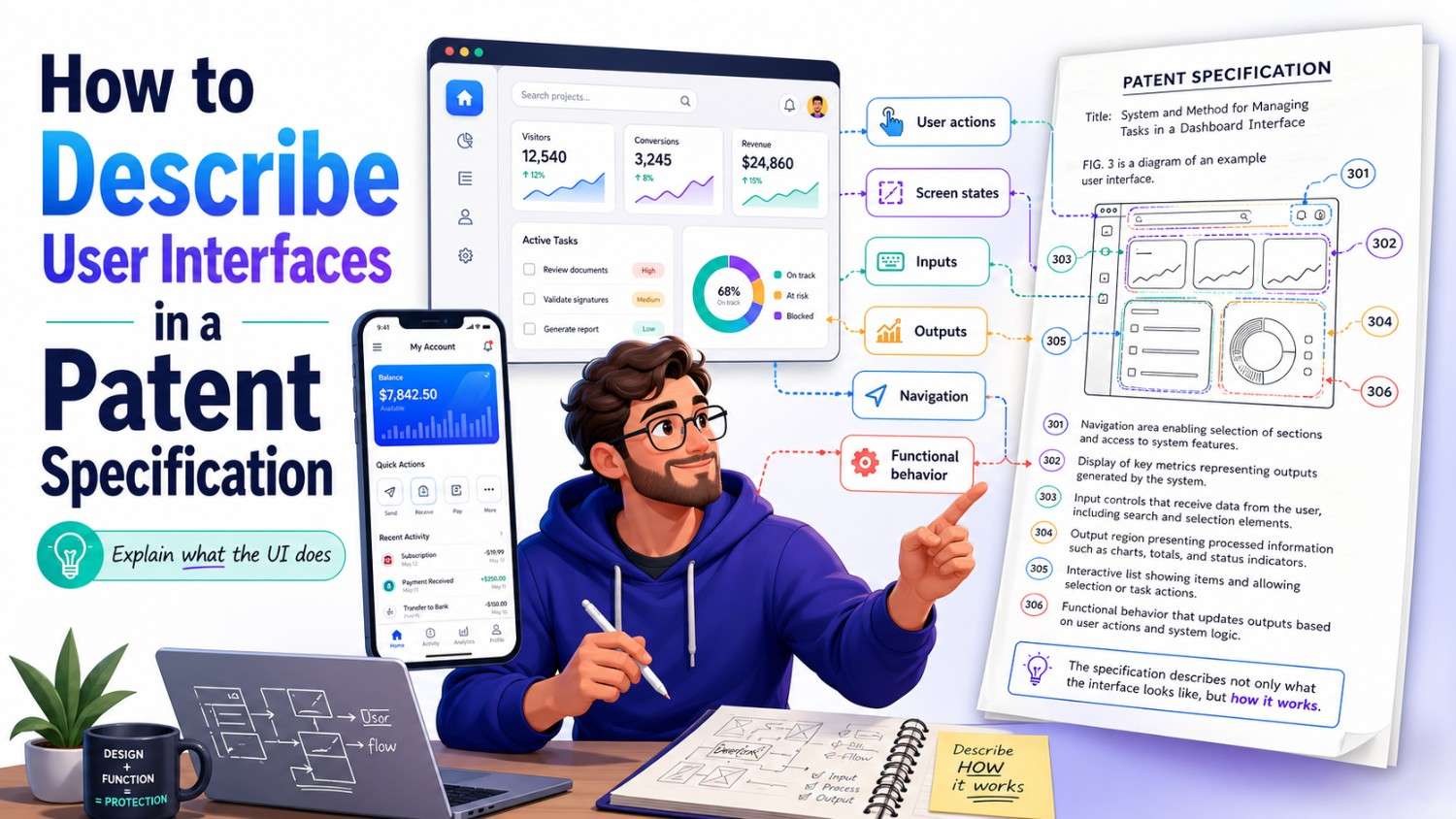
User interfaces can help explain an invention. They can show how a person sees, controls, reviews, accepts, rejects, edits, or uses the output of a system.
But user interfaces can also weaken a patent when they are described the wrong way.
If the patent makes the screen look like the whole invention, a competitor may copy the real technical idea and avoid the patent by changing the screen. A strong patent spec should describe the user interface clearly, while still protecting the deeper invention behind it.
PowerPatent helps founders, engineers, and inventors turn software, AI systems, product flows, and technical ideas into stronger patent filings with smart software and real patent attorney oversight. You can see how it works here: https://powerpatent.com/how-it-works
Why user interfaces are tricky in patent specs
A user interface is often the easiest part of an invention to see.
It is the screen in the demo.
It is the dashboard in the pitch deck.
It is the app view in the product spec.
It is the control panel customers use.
Because it is visible, teams often over-focus on it when they describe the invention.
That can create a problem.
Many inventions are not really about the screen. The screen is just where the invention shows up. The real invention may live in the data flow, model logic, scoring method, control process, routing step, feedback loop, sensor system, or automation engine.
For example, a startup may build a dashboard that shows machine failure risk. The real invention may be how the system detects failure patterns from sensor data. The dashboard is useful, but it may not be the core.
Another startup may build a mobile app that suggests medical review steps. The real invention may be how the system ranks cases based on changing patient data. The mobile app is one output path.
Another startup may build an AI coding assistant with a review screen. The real invention may be how the system selects code context, checks model output, and routes risky changes. The screen helps users interact with the output, but the technical value may be behind the screen.
That is why UI drafting needs care.
You want the patent spec to explain the interface well enough to support claims around the interface if needed. But you do not want the patent to become trapped by one layout, one button, one screen, one color, one device, or one workflow unless those details are truly part of the invention.
A good patent spec treats the user interface as part of the invention story, not always the whole story.
Start by asking what role the UI plays
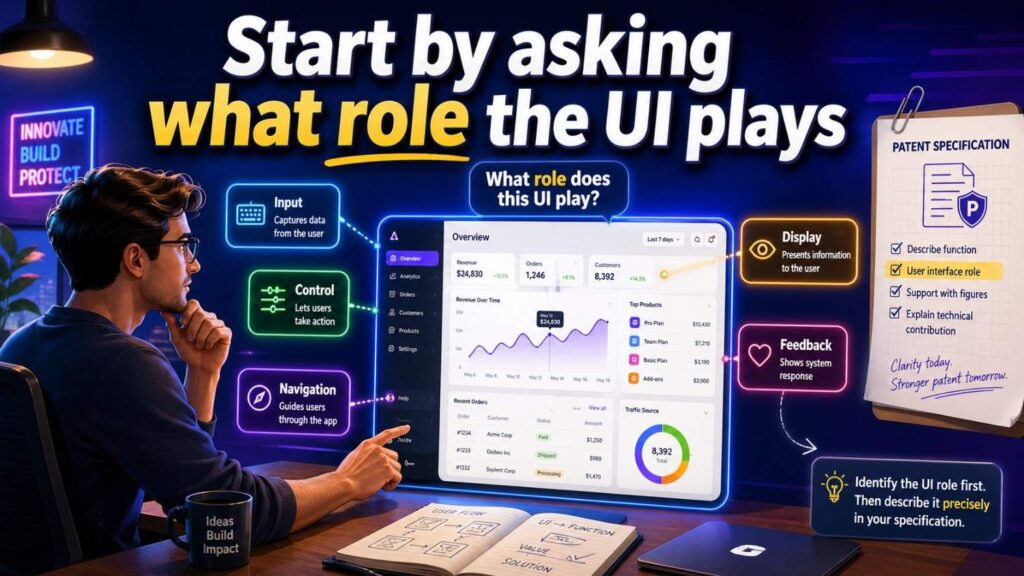
Before writing about a user interface, ask a simple question:
What does this interface do for the invention?
Does it show an output?
Does it receive user input?
Does it control a device?
Does it let a user review a result?
Does it collect feedback?
Does it explain why a result was generated?
Does it allow the user to change a setting?
Does it trigger a workflow?
Does it display live state?
Does it help compare options?
Does it reduce error?
Does it guide the user through a process?
The answer matters.
If the interface only displays a result, the spec should not make the display feel like the core invention.
If the interface collects feedback that updates a model, then the UI may be more important.
If the interface controls a machine in a new way, then the UI may be central.
If the interface changes how users interact with complex technical data, then the UI itself may deserve more focus.
The goal is to describe the interface based on its function, not just its appearance.
A weak spec says:
“The system includes a dashboard.”
A stronger spec says:
“In some examples, a user interface may display a risk output and receive review input from a user.”
That second sentence explains what the interface does.
It gives the UI a role.
Do not confuse the product screen with the invention
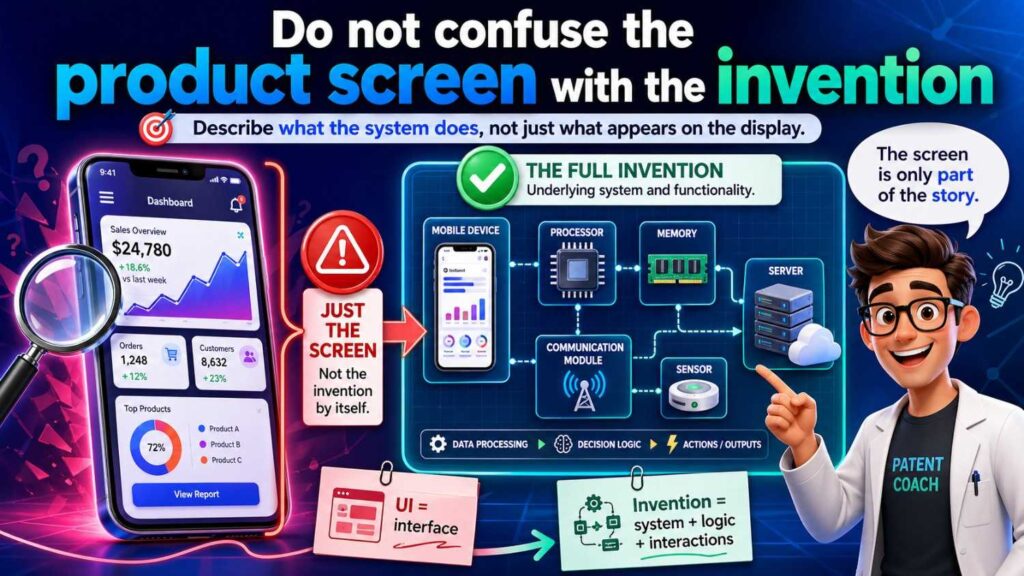
Founders often think in terms of the product.
That makes sense. You built a product. Customers use a product. Investors see a product.
But patents should protect the invention under the product.
A product screen may include many choices that are not central. A button may be placed on the right side because of design preference. A chart may be blue because of brand style. A card layout may be used because it looks clean. A sidebar may exist because the product team liked that navigation style.
Those details may not matter to the invention.
If the patent spec focuses too much on them, the patent can become narrow.
For example, avoid writing the spec like this:
“The dashboard includes a blue risk card in the top-left corner, a filter panel on the left side, and a green accept button below the chart.”
That may be useful only if the layout itself is part of the invention.
Most of the time, a better version is:
“In some examples, the user interface may display a risk output, supporting data, and one or more controls for accepting, rejecting, editing, or commenting on the risk output.”
This describes the function.
It protects more UI forms.
The risk output could appear in a card, table, chart, list, timeline, notification, pop-up, report, or mobile view.
The control could be a button, menu, gesture, voice input, keyboard command, API command, or another input.
That is much better for patent scope.
Describe UI function before UI appearance
A patent spec should usually describe what the interface does before describing how it looks.
Appearance can matter, but function matters more often.
For example, instead of starting with:
“The screen has three panels.”
Start with:
“The user interface may allow a user to review a generated output and provide feedback.”
Then explain the screen:
“In one example, the user interface may include a first area that displays the generated output, a second area that displays supporting data, and a third area that includes feedback controls.”
This order helps.
It tells the reader the purpose first.
Then it gives one layout as an example.
That is a strong pattern for UI drafting.
Use the same idea for dashboards, forms, mobile screens, admin tools, review panels, chat interfaces, control panels, and reports.
Function first. Layout second. Optional variations after that.
Use “example user interface” language
The word “example” does a lot of work in patent drafting.
A figure showing a user interface should usually be called an example unless it is truly the only version.
A good caption may say:
“Figure 3 illustrates an example user interface for presenting a risk output and receiving review input.”
That is much better than:
“Figure 3 shows the dashboard of the invention.”
The first caption leaves room for other interfaces. The second may suggest the dashboard is central or required.
In the detailed description, you can write:
“The user interface shown in Figure 3 is one example. Other examples may include different layouts, fewer elements, additional elements, or other ways of presenting the output and receiving input.”
This helps avoid narrow readings.
A screen is often just one way to show or collect information.
Make that clear.
Avoid making the UI required unless it truly is
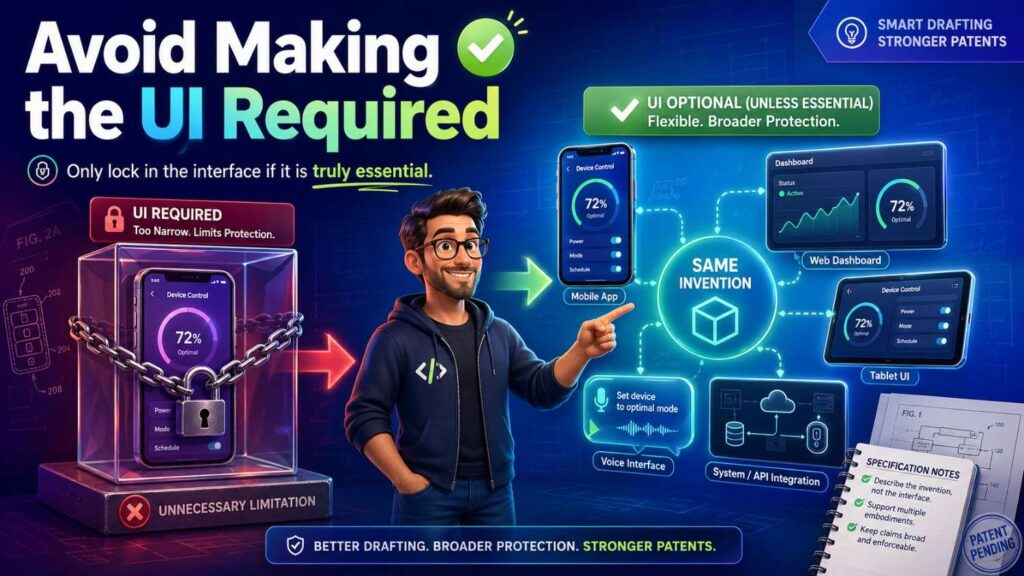
Many systems can work without a visible interface.
A risk score can be sent through an API.
A control signal can go straight to a machine.
A review output can be stored in a record.
A message can go to another system.
A model update can occur in the background.
If the user interface is not required, do not write as if it is.
Weak:
“The invention includes a dashboard that displays the output.”
Better:
“In some examples, the system may provide the output through a user interface, such as a dashboard.”
Even better:
“The system may provide the output to a user, device, software service, workflow system, database, API endpoint, or other destination. In some examples, the output may be displayed through a user interface, such as a dashboard.”
This protects more forms.
It also helps when the product evolves.
Many startups begin with a dashboard because it is easy to demo. Later, enterprise customers may want API access, automated actions, embedded widgets, command-line tools, or direct system integrations.
The patent should not be limited to the first screen unless the screen itself is the invention.
PowerPatent helps technical teams avoid this common trap by capturing the deeper invention behind the interface and pairing that with real attorney review. You can explore the process here: https://powerpatent.com/how-it-works
Describe UI elements by what they do
Patent specs should avoid overly visual UI descriptions unless visuals are important.
A button is not just a button. It is a control that causes something to happen.
A chart is not just a chart. It presents data in a way that helps review.
A table is not just a table. It organizes records by fields.
A filter is not just a filter. It changes which data is shown.
A slider is not just a slider. It adjusts a value.
A menu is not just a menu. It lets a user select an option.
A notification is not just a box. It alerts a user to a condition.
So describe the action.
Instead of:
“The screen includes a button.”
Write:
“The user interface may include a control that, when selected, causes the system to approve the output.”
Instead of:
“The screen includes a chart.”
Write:
“The user interface may include a visual element that shows a change in the risk score over time.”
Instead of:
“The screen includes a filter.”
Write:
“The user interface may include a filter control that allows a user to limit displayed outputs based on time, risk level, status, source, or other criteria.”
This makes the UI description more useful.
It also supports claims around user action and system response.
Use broad names for UI parts
UI terms can create hidden limits.
A “dashboard” may imply a certain kind of display.
A “button” may imply a click-based control.
A “mobile app” may imply a phone or tablet.
A “screen” may imply visual output.
A “form” may imply manual data entry.
Sometimes those terms are fine. But when broader coverage is useful, use broader names.
Instead of always saying “button,” say “control.”
Instead of always saying “dashboard,” say “user interface” or “output interface.”
Instead of always saying “mobile app,” say “client device” or “user device.”
Instead of always saying “screen,” say “interface” or “output channel.”
Instead of always saying “click,” say “select” or “provide input.”
For example:
“The user may select a control.”
That covers a button click, touch gesture, keyboard command, voice command, menu selection, API instruction, or other input.
If the exact UI type matters, you can still give examples.
“The control may include a button, menu item, slider, checkbox, gesture input, voice input, keyboard input, or another input element.”
This gives breadth without being vague.
Do not over-describe colors, shapes, and layout unless they matter
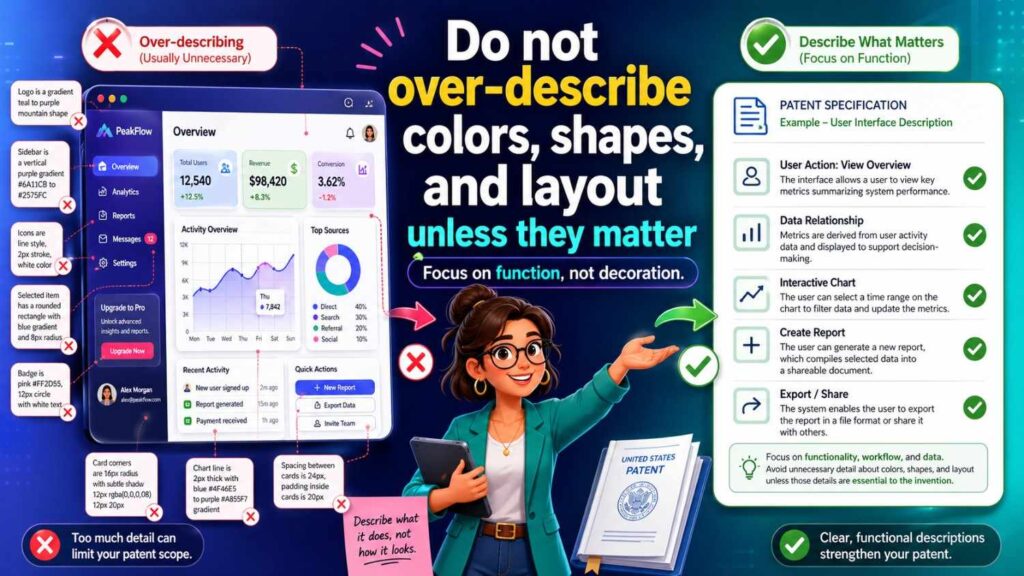
Most UI patents do not need detailed color and shape descriptions.
If the invention is not about the exact visual design, avoid making those details sound important.
For example, this may be too narrow:
“The warning is displayed in a red rectangular box above the chart.”
A better version may be:
“The user interface may display a warning indicator near the risk output.”
Then, as an example:
“In one example, the warning indicator may be displayed as a colored visual element.”
This keeps room for icons, text, sounds, vibrations, badges, cards, banners, voice prompts, or other outputs.
Layout can be described when helpful, but keep it flexible.
For example:
“In some examples, the user interface may display the output and the supporting data in separate interface regions.”
That is useful.
It does not lock the design to a left panel, right panel, top bar, or exact location.
If a layout is part of the invention because it helps reduce error or guide a technical workflow, then describe it more fully. But explain why it matters.
Describe the data shown in the UI
A user interface is often important because of the data it presents.
Do not just say “the UI shows results.”
Describe the types of information the UI may show.
For example:
“The user interface may display one or more of a score, label, alert, confidence value, explanation, supporting data, suggested action, status, time, source, model version, rule version, user assignment, or review history.”
That gives support.
Then tie the data to function:
“In some examples, displaying the confidence value and supporting data may help a user decide whether to accept, reject, edit, or request review of the output.”
Now the UI has a reason.
For AI systems, this is especially important. The interface may show the model output, selected context, confidence, source links, citations, error flags, review controls, or feedback prompts. Each may support future claims.
For hardware or control systems, the interface may show device state, sensor readings, thresholds, control settings, fault status, battery state, calibration status, or safety warnings.
For workflow tools, it may show task status, rank, owner, due date, risk level, priority, and suggested next step.
A good UI description explains what information matters and why.
Describe user inputs clearly
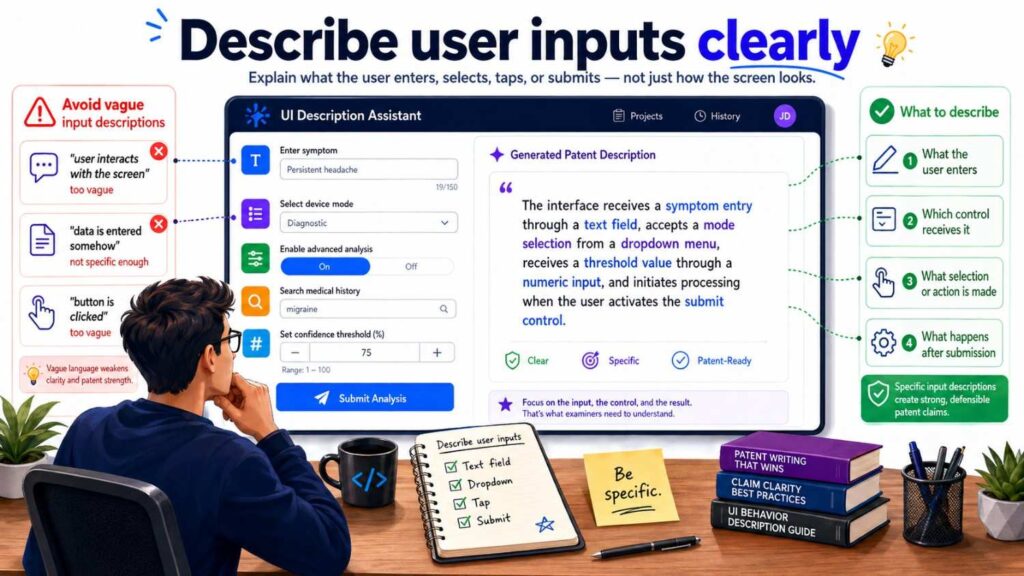
Many UI inventions involve user input.
The user may accept, reject, edit, approve, assign, label, comment, rank, filter, search, adjust, confirm, override, escalate, submit, or select.
These actions should be described.
For example:
“The user interface may receive user input that accepts, rejects, edits, labels, ranks, comments on, or otherwise responds to the output.”
Then explain what the system does with the input:
“The system may store the user input, update a status, send a message, create a task, adjust a threshold, update a rule, update a model, or generate a later output based on the user input.”
This is much stronger than saying “the user can interact with the interface.”
Interaction is vague.
Specific actions are useful.
User input is often the bridge between a screen and the deeper system. If the input changes later system behavior, the UI may support valuable patent claims.
Describe system response to UI input
A UI is not only about what a user sees.
It is also about what happens after the user acts.
That system response is often where the invention lives.
For example:
“When the user selects an approve control, the system may mark the output as approved and send the output to a downstream workflow.”
“When the user edits the output, the system may store the edited output and use the edit as feedback.”
“When the user rejects the output, the system may suppress similar outputs or update a ranking rule.”
“When the user changes a threshold, the system may apply the threshold to later output generation.”
“When the user selects a source item, the system may display supporting data used to generate the output.”
These details matter.
They turn the UI from a static screen into a technical workflow.
A patent spec should describe the cause-and-effect relationship.
User action causes system behavior.
That behavior may support claims.
Describe UI feedback loops
Feedback loops are very valuable in modern software, AI, and automation systems.
A user interface may collect feedback that improves future operation.
For example, a user may mark an AI output as correct or wrong. The system may store that input. Later, the system may update a model, adjust a rule, tune a threshold, or change a ranking.
This should be described clearly.
A strong paragraph may say:
“In some examples, the user interface may include one or more feedback controls. The feedback controls may allow a user to accept, reject, edit, score, label, or comment on an output. The system may store the feedback and use the feedback to update a model, threshold, rule, ranking, training record, or future workflow.”
This gives the patent spec depth.
It also supports future continuation claims around learning, review, and improvement.
For AI startups, do not skip this. User feedback may become one of the most valuable parts of the product.
Describe review workflows
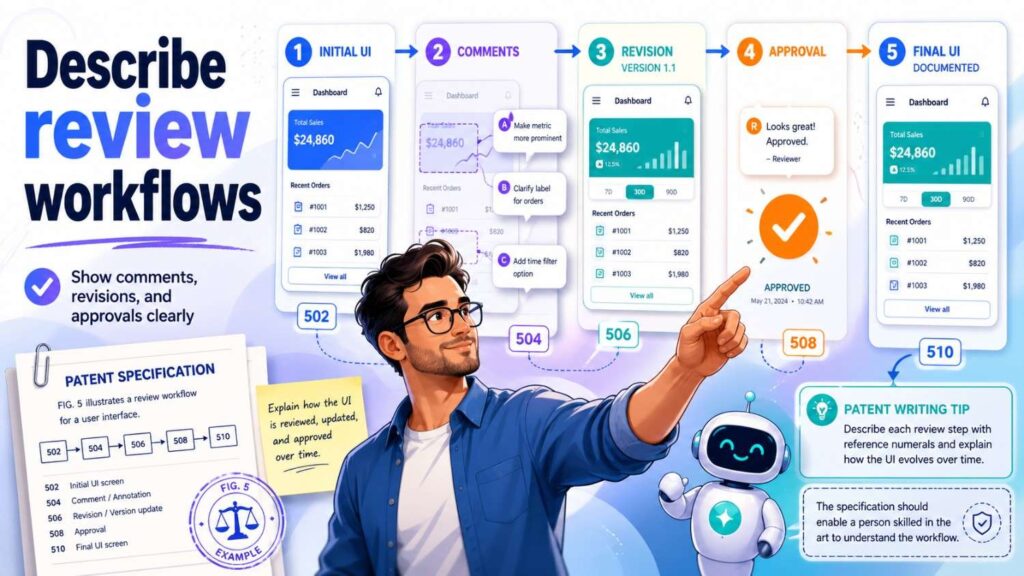
Many user interfaces are review interfaces.
They help a person decide whether to trust, approve, change, or reject a system output.
Review workflows show up in health tech, fintech, security, legal tech, AI tools, industrial software, robotics, and developer tools.
A good patent spec should explain what is reviewed, when review happens, and what the review result does.
For example:
“In some examples, the user interface may present a selected output for review. The selected output may be routed for review based on a confidence value, risk level, user request, review rule, missing data, detected conflict, or other review condition.”
Then:
“The user interface may receive a review result that approves, rejects, edits, labels, ranks, or comments on the selected output.”
Then:
“The system may store the review result and use it to update a status, generate an audit record, update a model, adjust a threshold, or send the output to another system.”
This is strong.
It explains the UI and the deeper workflow.
Describe explanations and supporting data
Many technical systems produce outputs that users need to understand.
An AI system may explain why it made a recommendation.
A risk system may show key factors.
A medical tool may show supporting patient data.
A security tool may show events that caused an alert.
A design tool may show constraints that affected a result.
The UI description should explain this.
For example:
“In some examples, the user interface may display an explanation associated with the output. The explanation may include one or more input factors, source records, ranked reasons, rule traces, score components, highlighted data, example cases, or other supporting information.”
Then add why:
“The explanation may help a user review the output, compare outputs, identify an error, or decide whether to perform a suggested action.”
This can support claims around explainability.
It also makes the patent spec more complete.
Do not just say “the UI explains the result.” Explain what the explanation may include.
Describe confidence values and uncertainty in the UI
Confidence values are common in AI, risk scoring, sensor systems, and decision tools.
If the UI shows confidence, describe it.
For example:
“The user interface may display a confidence value associated with the output. The confidence value may include a score, label, range, probability, flag, error estimate, or other measure of certainty.”
Then explain how the user or system uses it:
“In some examples, the confidence value may affect how the output is displayed, whether the output is routed for review, whether an alert is sent, or whether a suggested action is available.”
This is useful.
It connects the UI to decision logic.
For example, a low-confidence output may appear with a warning, be routed to review, or require user approval. A high-confidence output may be shown with an automatic action option.
These details can support strong claims.
Describe ranking, sorting, and filtering
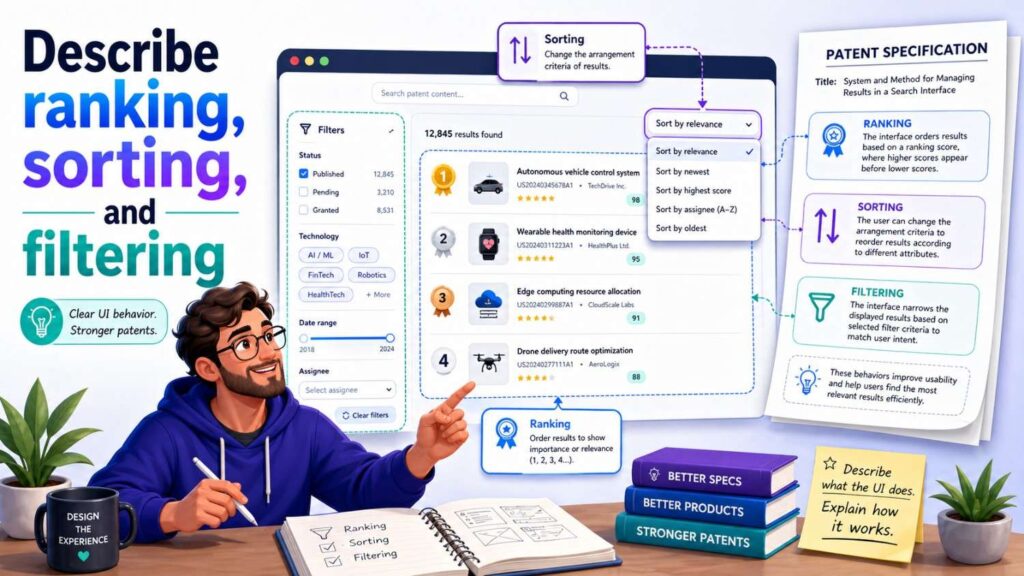
Many user interfaces help users manage lots of information.
They may rank, sort, group, or filter items.
This is not just UI polish. It can be part of a technical workflow.
For example:
“The user interface may display a ranked list of outputs. The ranking may be based on risk, confidence, time, severity, cost, user role, expected impact, system state, or another factor.”
Or:
“The user interface may include a filter control that allows a user to filter displayed items by score, status, source, type, time, assigned user, confidence value, or review state.”
Or:
“The user interface may group related alerts into a single incident or group outputs based on a shared condition.”
Then explain why:
“This may reduce repeated review, help a user focus on higher-priority items, or reduce the chance that an important output is missed.”
These features may seem like UI features, but they can reflect real system logic.
Describe them as part of the invention when they matter.
Describe alerts and notifications
A user interface may include alerts, warnings, notices, badges, pop-ups, banners, messages, sounds, haptic signals, or other notices.
Use broad language.
For example:
“The system may provide an alert through a user interface or another output channel. The alert may include a visual indicator, message, sound, vibration, icon, badge, banner, pop-up, email, text message, push notice, API message, or other notification.”
This avoids limiting alerts to one format.
Then explain triggers:
“The alert may be provided when a score satisfies a threshold, when a condition is detected, when confidence is low, when user review is needed, when data is missing, or when a rule is satisfied.”
Now the alert is connected to system behavior.
This supports more claim paths.
Describe settings and controls
User interfaces often allow users to change settings.
A patent spec should describe settings by what they affect.
For example:
“The user interface may allow a user to change one or more settings associated with data sources, thresholds, alert channels, review rules, model selection, output format, user permissions, or workflow actions.”
Then explain system response:
“The system may store the changed setting and apply the changed setting to later data processing, output generation, review routing, alert generation, or model updating.”
This is much stronger than saying “the interface includes settings.”
Settings are important because they control system behavior.
If the user can tune a threshold, select a model, choose which alerts to receive, or change a review rule, that may be patent-relevant.
Describe dashboards without making them the invention
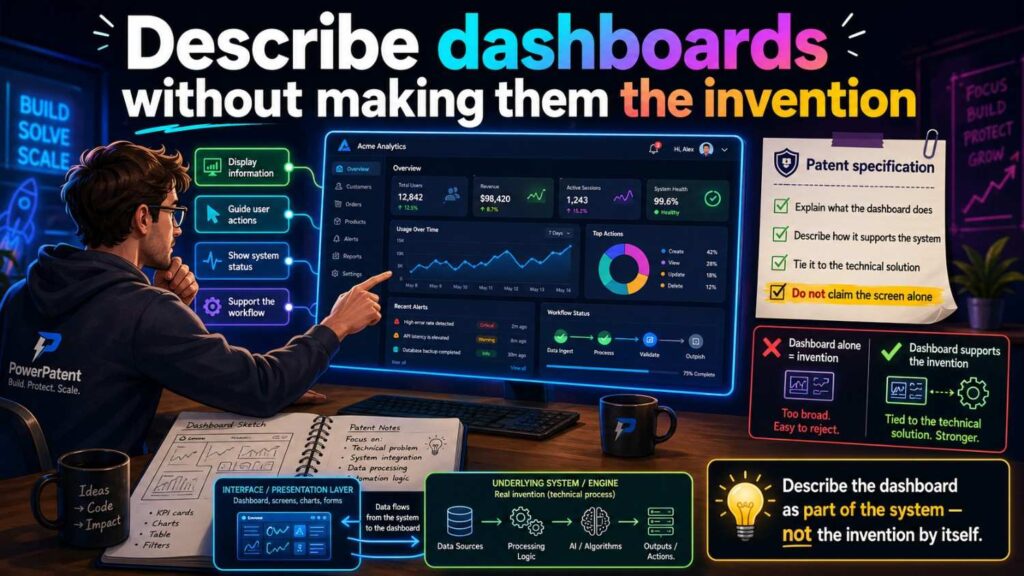
Dashboards are common.
But they are often overused in patent specs.
A dashboard should usually be described as one kind of user interface.
For example:
“In some examples, the user interface may be a dashboard that displays one or more outputs.”
Then add:
“In other examples, the output may be provided through a mobile interface, web page, report, message, API response, command-line interface, voice interface, device display, or another output channel.”
This prevents the invention from being locked to the dashboard.
If the dashboard itself has a special technical role, explain it.
For example:
“The dashboard may group outputs from multiple devices, rank the grouped outputs by risk, and allow a user to assign a selected output to a repair workflow.”
Now the dashboard is more than a screen.
It is part of a workflow.
Describe mobile interfaces broadly
If the product is a mobile app, do not assume the patent should be limited to mobile.
A mobile app may be one example.
For example:
“In some examples, the user interface may be presented through a mobile device. In other examples, the user interface may be presented through a desktop computer, web browser, wearable device, embedded display, vehicle display, tablet, voice interface, or other user device.”
This is broader.
Then describe mobile-specific features only if they matter.
A mobile interface may use location, camera input, touch input, push notifications, offline storage, or device sensors. If those features matter, explain them.
For example:
“In some examples, the mobile device may capture image data through a camera and provide the image data to the system for analysis.”
Or:
“In some examples, the mobile device may store selected outputs locally when a network connection is unavailable.”
These details can support mobile-specific claims without limiting the whole invention to mobile.
Describe chat interfaces carefully
Many AI products use chat.
A chat interface can be useful, but the invention may not be the chat box.
The real invention may be how context is selected, how outputs are checked, how user corrections are used, or how tasks are triggered.
Describe the chat interface by function.
For example:
“In some examples, the user interface may include a conversational interface that receives a user query and presents a generated response.”
Then go deeper:
“The system may select context data based on the user query, generate a model input using the selected context data, generate a response using a trained model, validate the response, and present the validated response through the conversational interface.”
This protects the deeper workflow.
Also describe user feedback:
“The conversational interface may receive a user correction, follow-up question, approval, rejection, or other feedback associated with the response.”
That can support future claims.
Describe voice interfaces and non-visual interfaces
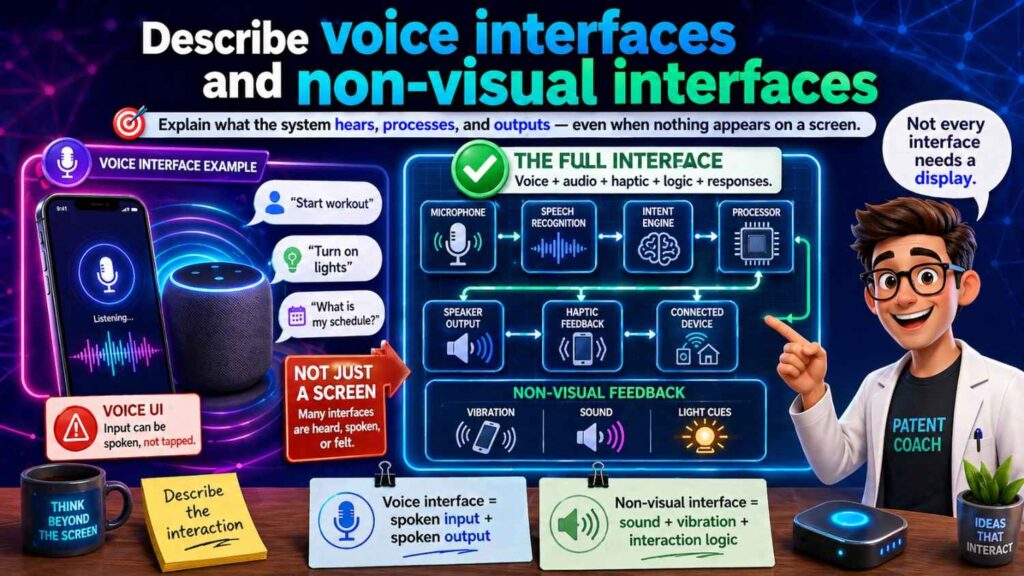
Not every interface is a screen.
A user interface may be voice-based, audio-based, haptic, gesture-based, physical, or API-based.
If your invention can support non-visual interfaces, include them.
For example:
“The user interface may include a graphical interface, voice interface, audio interface, haptic interface, gesture interface, physical control interface, command-line interface, API interface, or another interface for providing output or receiving input.”
This helps avoid a screen-only patent.
For hardware, robotics, automotive, industrial, medical, and accessibility products, non-visual interfaces can matter a lot.
A warning may be a sound.
A confirmation may be a voice command.
A control may be a physical switch.
A status may be shown by light, vibration, or haptic feedback.
Include these if they fit the invention.
Describe API interfaces as output paths
For many startups, the product may become infrastructure.
A UI may be used for demos and admin workflows, but customers may later use APIs.
Do not leave API outputs out if they are realistic.
For example:
“The output may be provided through a user interface, API response, webhook, message, report, database record, control signal, or other output channel.”
This supports API-first versions.
If API interaction is important, describe it:
“In some examples, an external system may send a request through an API, and the system may return an output through an API response. The API response may include a score, label, confidence value, explanation, suggested action, or status.”
This can prevent the patent from being tied only to screens.
PowerPatent helps founders think beyond the visible UI and capture the broader product architecture that may matter later. Learn more here: https://powerpatent.com/how-it-works
Describe admin interfaces and user roles
Many products have different interfaces for different users.
An admin may configure settings.
A reviewer may approve outputs.
An operator may receive alerts.
A manager may view reports.
A technician may act on tasks.
A patient, customer, or end user may see a limited view.
If roles matter, describe them.
For example:
“In some examples, the system may present different interface elements based on a user role or permission.”
Then:
“An administrator interface may allow an administrator to configure thresholds, user permissions, data sources, or review rules. A reviewer interface may allow a reviewer to approve, reject, or edit outputs. An operator interface may display alerts and suggested actions.”
This supports role-based claims.
It also reflects how real enterprise software works.
Do not limit the invention to one user type unless that role is central.
Describe permissions and access control in the UI
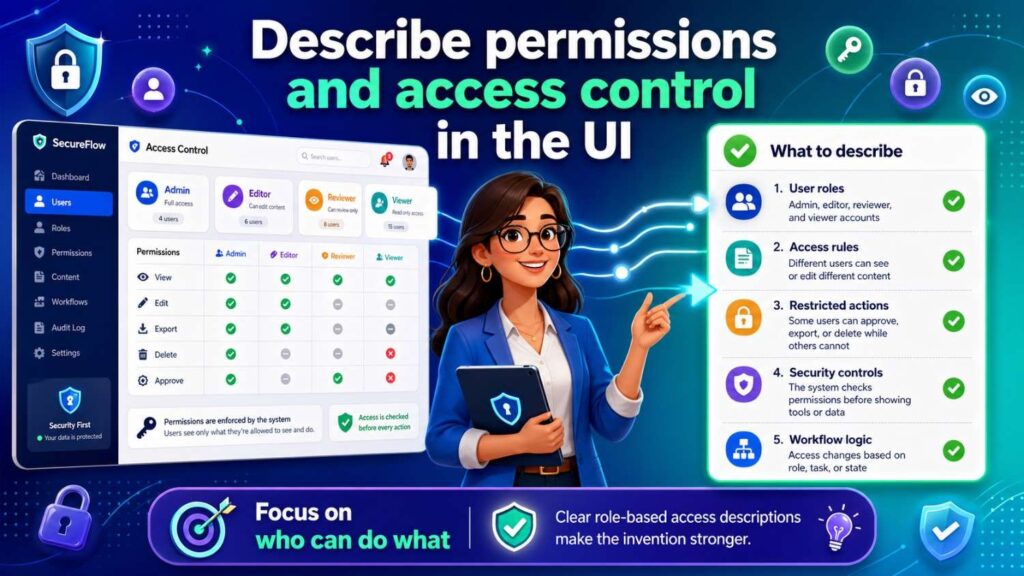
Security and permissions often show up through the interface.
For example, some users may see only certain data. Some may approve actions. Some may edit outputs. Some may change rules. Some may view audit logs.
Describe this if it matters.
For example:
“The user interface may display, hide, enable, or disable one or more interface elements based on a user permission, role, policy, device, location, or other access condition.”
Then:
“In some examples, a user with a first role may view an output, while a user with a second role may approve the output or change a system setting.”
This can support claims around secure review workflows.
It also shows that the UI is tied to system logic, not just display.
Describe audit records connected to UI actions
User actions often need to be recorded.
This is important in AI, health, finance, legal tech, security, industrial systems, and enterprise tools.
A patent spec may say:
“In some examples, the system may create an audit record based on user input received through the user interface.”
Then:
“The audit record may include the user input, output, confidence value, supporting data, user identifier, time, model version, rule version, review result, or action taken.”
Then explain use:
“The audit record may be used to review a decision, explain an output, update a model, compare performance, or support later review.”
This creates strong support for audit and review features.
It also makes the UI part of a traceable workflow.
Describe how UI actions can update models or rules
If UI input affects system learning, explain it.
For example:
“When a user edits an output through the user interface, the system may store the edited output as feedback. The feedback may be used to update a model, adjust a rule, change a threshold, update a ranking, or create a training record.”
This is a strong technical connection.
It shows that the interface is not just a display.
It is part of a learning system.
For AI startups, this is often very important. The UI may be the place where human judgment enters the system. That judgment may improve future model behavior.
Do not bury this in a vague sentence.
Describe UI changes over time
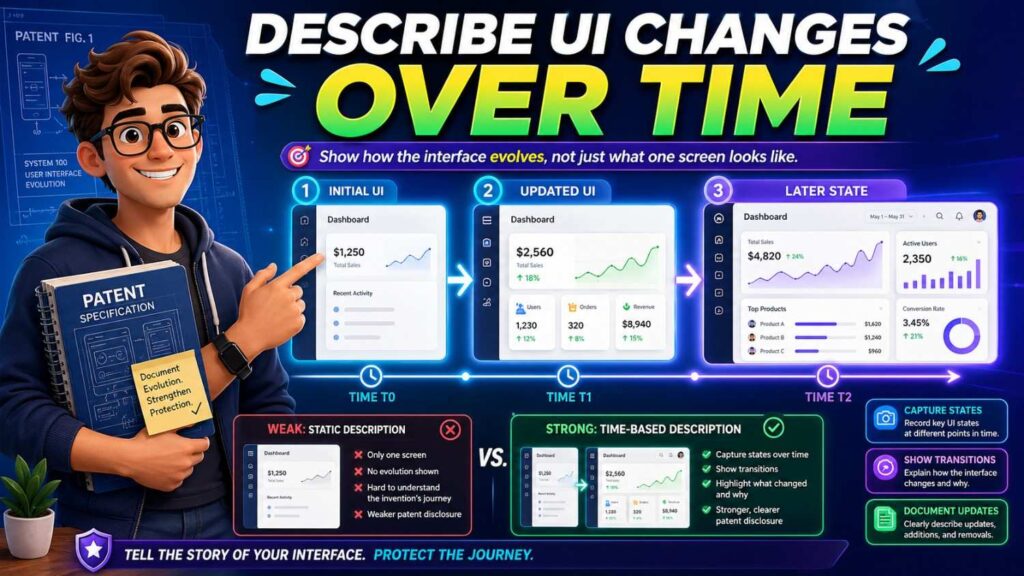
Some interfaces adapt.
They may show different data based on user role, prior actions, risk level, confidence value, device type, or system state.
If adaptive UI behavior matters, include it.
For example:
“In some examples, the user interface may change based on a confidence value associated with an output. When the confidence value is below a threshold, the user interface may display supporting data or require review before an action is performed.”
Another:
“In some examples, the user interface may display different controls based on whether the output has been reviewed, approved, rejected, or escalated.”
Another:
“In some examples, the user interface may prioritize higher-risk outputs by displaying them above lower-risk outputs.”
These details can support UI claims that are more than static screen claims.
Describe real-time and batch UI updates
Some interfaces update live. Others update on demand or on a schedule.
If timing matters, describe it broadly.
For example:
“The user interface may be updated in real time, near real time, periodically, in response to a user request, in response to a system event, or according to a schedule.”
Then give examples:
“In some examples, the user interface may update a risk score when new sensor data is received.”
Or:
“In some examples, the user interface may update a report after a batch processing operation is complete.”
This keeps timing flexible.
It also supports future product versions.
Describe offline UI behavior
Offline behavior may matter for mobile, field, industrial, health, robotics, and edge systems.
If the interface can work without a network, describe it.
For example:
“In some examples, the user interface may display locally stored outputs when a network connection is unavailable.”
Another:
“The user interface may receive user input while offline, store the user input locally, and send the user input to a remote system after a network connection becomes available.”
This is a valuable technical detail.
It may support future claims around local storage, synchronization, and offline review.
Describe error states and warnings
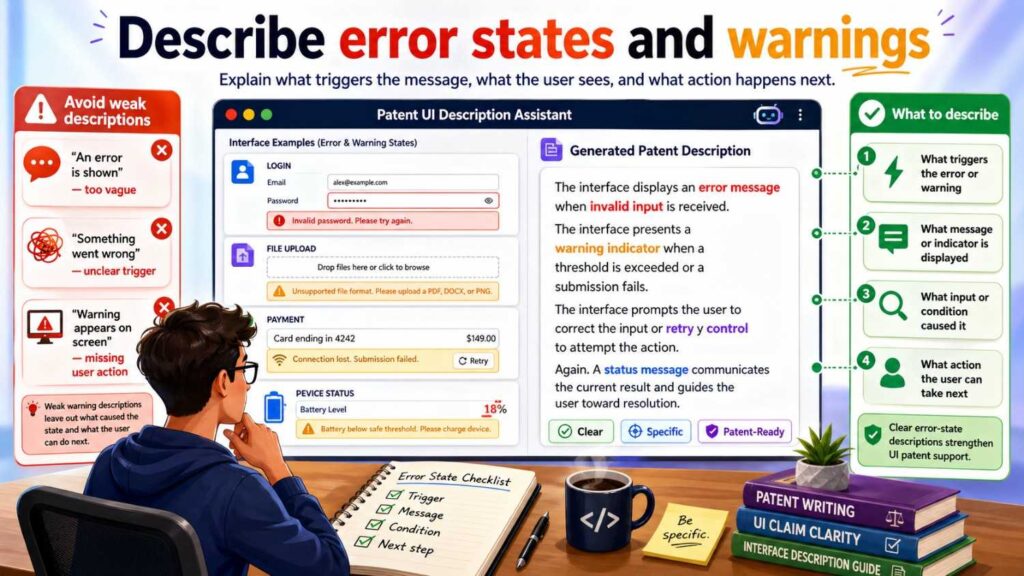
Real systems have errors.
The UI may show missing data, conflicting results, low confidence, failed processing, network loss, device failure, invalid input, permission denial, or unsafe action warnings.
These can be important.
For example:
“In some examples, the user interface may display an error indicator when input data is missing, incomplete, inconsistent, or unavailable.”
Another:
“In some examples, the user interface may display a warning when an output has a confidence value below a threshold.”
Another:
“In some examples, the user interface may disable an action control when a safety condition is not satisfied.”
This shows mature system behavior.
It also supports claims around safety and reliability.
Describe UI support for control systems
Some interfaces let users control machines, devices, robots, vehicles, lab equipment, industrial systems, or software systems.
Control interfaces should be described with special care.
A patent spec may say:
“The user interface may display a device state and one or more control elements for changing operation of the device.”
Then explain controls:
“The control elements may allow a user to start, stop, pause, reset, calibrate, adjust, approve, reject, or override an operation.”
Then explain system response:
“In response to user selection of a control element, the system may send a control signal to the device.”
Then explain safety:
“In some examples, the system may require a condition to be satisfied before sending the control signal.”
This is much stronger than saying “the UI controls the device.”
For technical control systems, the UI may be tied to safety and automation. Include those details if they matter.
Describe UI support for suggested actions
Many systems produce recommendations.
A UI may show a suggested action and allow a user to accept or change it.
For example:
“The user interface may display a suggested action associated with the output. The suggested action may include repairing a device, reviewing a record, blocking a transaction, sending a message, changing a setting, routing a file, ordering a part, scheduling a task, or performing another action.”
Then:
“The user interface may receive user input approving, rejecting, modifying, or assigning the suggested action.”
Then:
“The system may cause the approved or modified action to be performed by a downstream system.”
This supports claims around decision support and workflow automation.
Describe UI support for comparison
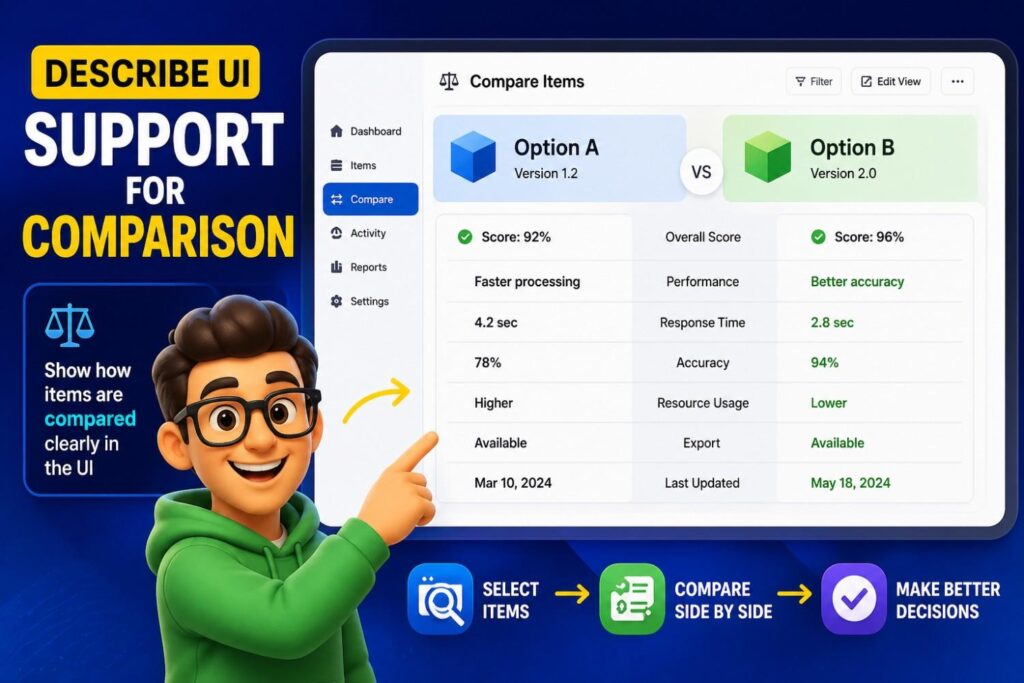
Some interfaces let users compare items.
For example, compare model outputs, patient records, device states, design options, risk scores, versions, or scenarios.
A spec may say:
“In some examples, the user interface may display two or more outputs for comparison.”
Then:
“The comparison may include differences in scores, confidence values, input factors, suggested actions, time periods, model versions, or other data.”
Then explain use:
“The comparison may help a user select an output, identify a change, approve an action, or detect an error.”
Comparison can be a valuable UI function, especially in technical decision tools.
Describe UI support for simulation or preview
Some systems allow users to preview what will happen before taking action.
For example:
“The user interface may allow a user to preview an effect of a selected setting, threshold, action, or model before applying the selection.”
Then:
“The system may generate a simulated output based on the selected setting and display the simulated output through the user interface.”
This can be patent-relevant.
It shows the UI is part of a technical simulation or decision process.
Describe search and query features
Search can be simple, but it can also be technical.
If the UI allows users to search outputs, records, documents, code, alerts, or device data, describe it.
For example:
“The user interface may receive a search query and display one or more matching records based on the search query.”
Then add detail:
“The matching records may be ranked based on relevance, time, risk level, confidence value, user role, source, or other factors.”
If search uses AI or context selection, explain that too:
“In some examples, the system may use the search query to select context data for a trained model.”
This supports more than a basic search box.
Describe forms as data capture tools
A UI form may receive important data.
Do not just say “the user enters information.”
Describe what data is entered and how it is used.
For example:
“The user interface may receive user-provided data that identifies a target object, condition, setting, threshold, rule, label, or review result.”
Then:
“The system may use the user-provided data to process later input data, generate an output, update a model, change a workflow, or create a record.”
This gives the form technical purpose.
Describe drag-and-drop, gestures, and visual editing broadly
Some interfaces involve visual editing.
Users may drag items, draw regions, select areas, annotate images, move nodes, connect blocks, adjust sliders, or place markers.
Describe the function, not just the gesture.
For example:
“The user interface may receive a selection of a region within an image.”
That covers drawing a box, tapping, dragging, or using another selection method.
Then:
“The system may process image data associated with the selected region.”
Another:
“The user interface may allow a user to modify a workflow by adding, removing, or connecting nodes.”
Then:
“The system may update a workflow definition based on the modification.”
This supports visual editing claims without being tied to one gesture.
Describe generated UI content
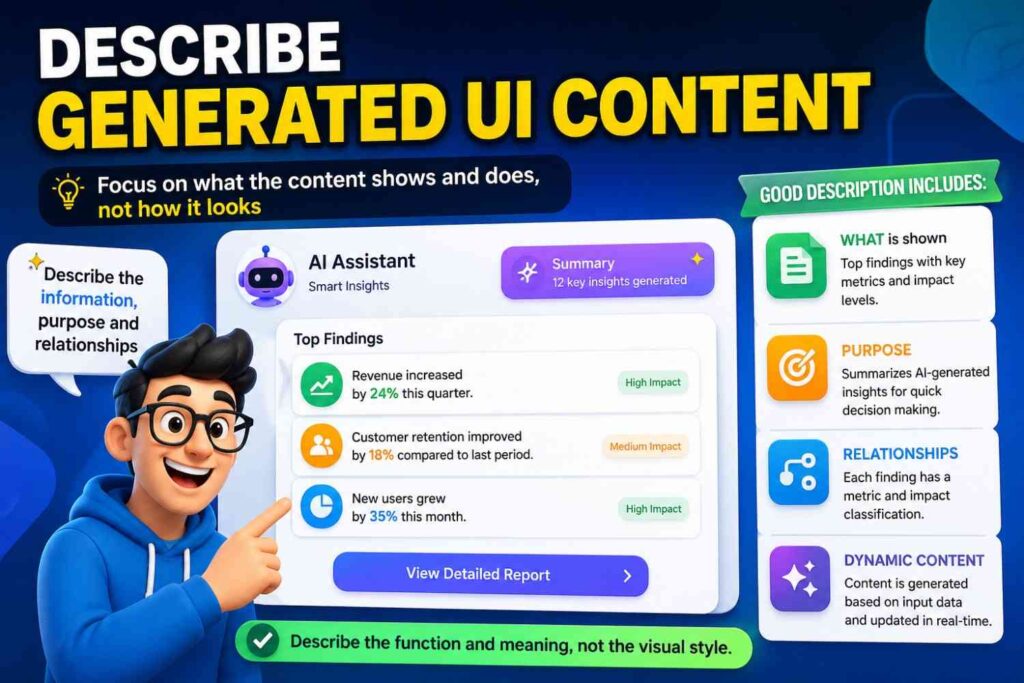
Some systems generate parts of the interface dynamically.
For example, an AI system may generate a summary, explanation, suggested action, form field, label, or workflow step.
If this matters, describe it.
For example:
“In some examples, the system may generate interface content based on input data or a model output.”
Then:
“The generated interface content may include a text summary, suggested action, explanation, question, form field, label, chart, or review prompt.”
Then:
“The user interface may present the generated interface content and receive user input responsive to the generated interface content.”
This can be valuable for AI-assisted workflows.
Describe UI personalization
User interfaces often adapt to users, teams, sites, or organizations.
If personalization matters, include it.
For example:
“In some examples, the user interface may be personalized based on a user role, past user action, organization setting, device type, risk level, workflow state, or user preference.”
Then:
“The personalization may include changing displayed fields, ranking outputs, selecting alerts, hiding controls, changing thresholds, or changing output formats.”
This supports future claims around adaptive interfaces.
Describe UI and data privacy
Some interfaces show sensitive data.
If privacy matters, describe how the UI handles it.
For example:
“In some examples, the user interface may mask, hide, summarize, or remove sensitive data based on a user permission or privacy setting.”
Another:
“The user interface may display a summary of sensitive data instead of displaying the underlying sensitive data.”
Another:
“The system may restrict display of selected fields based on user role, policy, location, device, or data type.”
These details matter in health, finance, legal, security, enterprise, and AI tools.
Describe UI and security
Security can appear through login, permissions, alerts, approvals, or suspicious activity warnings.
For example:
“In some examples, the user interface may require authentication before allowing a user to view an output or perform an action.”
Another:
“The user interface may display a security warning when an action is requested from an untrusted device or location.”
Another:
“The user interface may disable a control when the user does not have permission to perform the related action.”
This connects UI behavior to security logic.
Describe UI in figures carefully
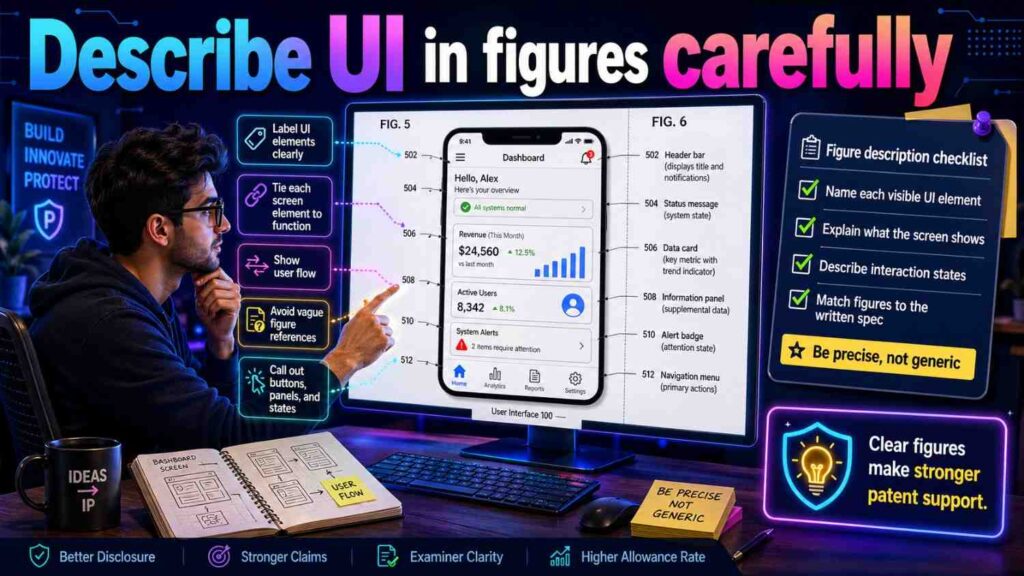
If you include UI figures, describe them as examples.
A good figure caption:
“Figure 4 illustrates an example user interface for reviewing an output generated by the system.”
Then in the detailed description:
“The example user interface may include an output area, supporting data area, and review control area.”
Then:
“Other examples may include different layouts, additional elements, fewer elements, or different ways to provide the output and receive review input.”
This keeps the figure from limiting the invention.
If the screenshot shows specific text, decide whether that text matters. Often, it is just example content.
You can say:
“The specific labels, values, and arrangement shown in Figure 4 are examples and may vary.”
That helps.
Do not let UI screenshots create unwanted limits
Screenshots can be dangerous if treated too literally.
They show exact words, colors, icons, layout, data values, and controls.
Unless those exact details matter, the spec should frame them as examples.
For example:
“Although Figure 4 shows particular labels, controls, and layout positions, other examples may use different labels, controls, layouts, or visual arrangements.”
This is useful.
Also avoid saying:
“The interface includes the elements shown in Figure 4.”
That may sound like every element is required.
Better:
“In the example of Figure 4, the user interface includes…”
Then:
“One or more of the illustrated elements may be omitted, combined, separated, rearranged, or replaced in other examples.”
This is a strong way to describe UI figures.
Describe UI alternatives
For each important UI function, describe alternatives.
If the UI displays an alert, the alert can be a banner, icon, message, sound, vibration, email, text, API response, or workflow task.
If the UI receives approval, approval can be a button, checkbox, gesture, voice command, keyboard input, menu selection, or API instruction.
If the UI shows a score, the score can be a number, label, color, range, class, rank, or warning level.
If the UI shows supporting data, it can be text, chart, table, image, source link, highlighted field, timeline, or summary.
This gives the patent more room.
Do not list endless alternatives just to fill space. Choose meaningful ones.
Describe UI as one part of a larger system
A strong patent spec often describes the UI in relation to other system parts.
For example:
“The user interface may receive an output from the processing system.”
“The user interface may send user feedback to the processing system.”
“The processing system may update a data store based on user input received through the user interface.”
“The user interface may display data retrieved from the data store.”
“The user interface may send an approved action to a workflow system.”
This is better than describing the UI alone.
It shows how the interface connects to data, logic, storage, models, devices, and workflows.
That is where patent value often lives.
Describe UI timing and triggers
The UI may show information because something happened.
Describe triggers.
For example:
“The user interface may display an alert when the system detects a condition.”
“The user interface may display a review prompt when a confidence value is below a threshold.”
“The user interface may update a status when a downstream workflow completes an action.”
“The user interface may display a warning when input data is missing.”
“The user interface may show a suggested action after generating a risk score.”
These trigger-response details make the UI description stronger.
They support claims around event-driven interfaces.
Describe UI state changes
A UI may show different states.
For example:
Pending.
Approved.
Rejected.
Escalated.
In review.
Completed.
Failed.
Low confidence.
High risk.
Offline.
Synced.
A patent spec may say:
“In some examples, the user interface may display a status associated with an output. The status may indicate whether the output is pending review, approved, rejected, edited, escalated, completed, failed, or otherwise processed.”
Then:
“The system may update the status based on user input, system events, review results, or downstream workflow results.”
This gives useful support.
Describe UI and workflow systems
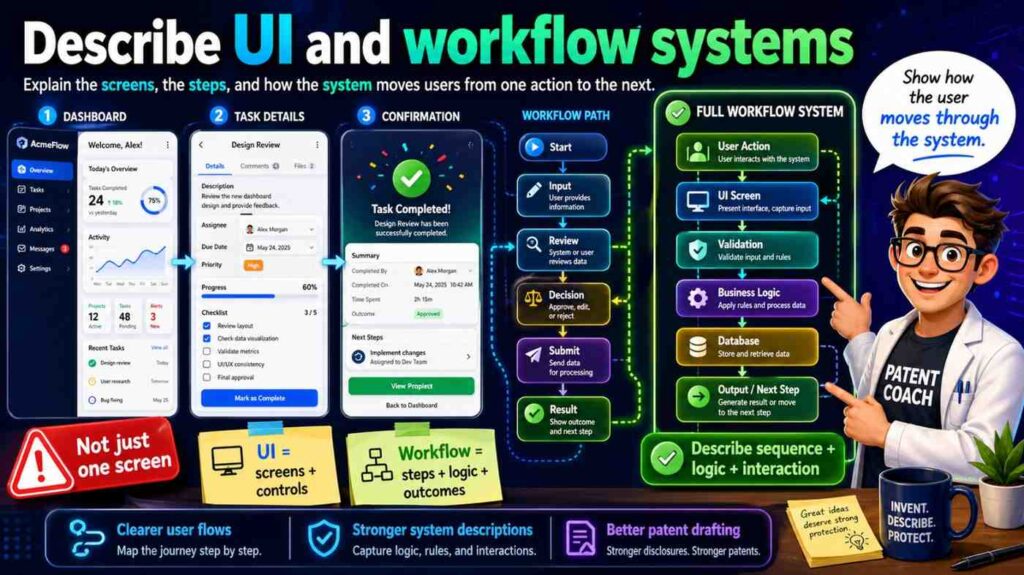
Many interfaces are part of workflows.
A user may approve an output, then a task is created. A technician may receive a job. A downstream system may take action. A record may be updated.
Describe this.
For example:
“In response to user approval received through the user interface, the system may create a task in a workflow system.”
Another:
“The task may include the output, supporting data, suggested action, priority, assigned user, due time, or status.”
Another:
“The workflow system may send a completion result back to the system, and the user interface may update the displayed status based on the completion result.”
This is much stronger than “the dashboard creates a task.”
It shows the full loop.
Describe UI for multi-user systems
Some inventions involve many users.
For example, one user creates an output, another reviews it, another approves it, and another acts on it.
If relevant, describe that.
For example:
“In some examples, the system may provide different user interfaces to different users. A first user interface may receive input data or a request. A second user interface may present an output for review. A third user interface may present an approved action to an operator.”
Then:
“The system may update a shared record based on inputs received through the different user interfaces.”
This can support collaborative workflow claims.
Describe UI for multi-device systems
A user may interact through more than one device.
For example, a desktop dashboard may show a report, while a mobile app receives alerts. A wearable may provide haptic feedback. A machine display may show status.
Describe this if relevant.
For example:
“In some examples, the system may provide a first interface through a first user device and a second interface through a second user device.”
Then:
“The first interface may display a detailed output, while the second interface may display an alert or receive a quick approval input.”
This supports multi-device product paths.
Describe UI for accessibility when relevant
Accessibility features may be useful in some inventions.
A user interface may provide voice output, larger text, haptic feedback, screen reader support, simplified views, or alternative controls.
If accessibility is tied to the invention, describe it.
For example:
“In some examples, the user interface may provide an output through visual, audio, haptic, or text-based elements.”
This broadens the interface beyond one display form.
Describe UI generated from rules or models
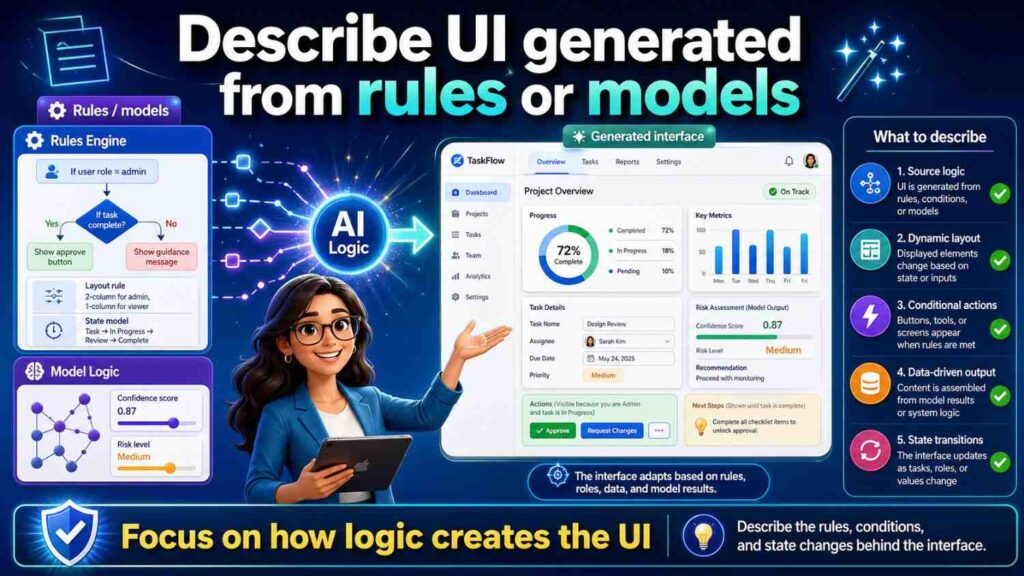
Some systems decide what to show based on a model or rule.
For example:
“The system may select one or more interface elements based on a model output, rule, user role, risk level, confidence value, or workflow state.”
Then:
“The selected interface elements may include a warning, explanation, suggested action, review control, or data field.”
This supports adaptive UI claims.
It is especially useful for AI systems where the interface changes based on generated results.
Describe UI without saying “screen” every time
“Screen” is okay when you mean a screen. But many interfaces are broader.
Use “user interface,” “interface,” “output interface,” “review interface,” “control interface,” or “client interface” where appropriate.
For example:
“The user interface may present the output.”
That is broader than “the screen displays the output.”
“The interface may receive user input.”
That is broader than “the user clicks a button.”
This helps the spec cover mobile, web, desktop, voice, API, and embedded displays.
Describe UI claims with care
Again, this article is not legal advice, and claims should be handled by a patent professional.
But founders should understand a basic point.
If the main claim includes a specific UI element, that element may become required.
For example, if the main claim requires “a dashboard displaying a chart,” a competitor may avoid the claim by using a list, report, API, or alert.
If the real invention is the back-end scoring method, the broadest claim may not need the dashboard.
A narrower claim can add the dashboard.
A later claim can add review controls.
Another can add feedback-based updating.
This layered approach can protect both the core and the UI improvements.
PowerPatent helps founders work through these choices with software-guided invention capture and attorney oversight. Learn more here: https://powerpatent.com/how-it-works
Describe UI features that may support dependent claims
UI features can be good for narrower claims.
For example:
A control for accepting or rejecting an output.
A display of confidence values.
A display of supporting data.
A review interface triggered by low confidence.
A feedback control that updates a model.
A role-based interface.
A dashboard that groups related alerts.
A user interface that shows suggested actions.
A control interface that sends a device command.
These features may not belong in the broadest claim, but they can add strength in later claims.
The spec should describe them clearly if they matter.
Keep UI descriptions tied to technical value
Patent specs should not describe UI features only as “nice to use.”
Try to tie UI features to technical results.
For example:
“The user interface may group related alerts to reduce repeated review of the same condition.”
“The user interface may display supporting data to allow a user to identify an error in an output.”
“The user interface may disable a control when a safety condition is not satisfied.”
“The user interface may receive feedback used to update a model.”
“The user interface may display confidence values to route low-confidence outputs for review.”
These statements show how the UI helps the system work better.
That is stronger than saying the UI is easier or more beautiful.
Avoid marketing language
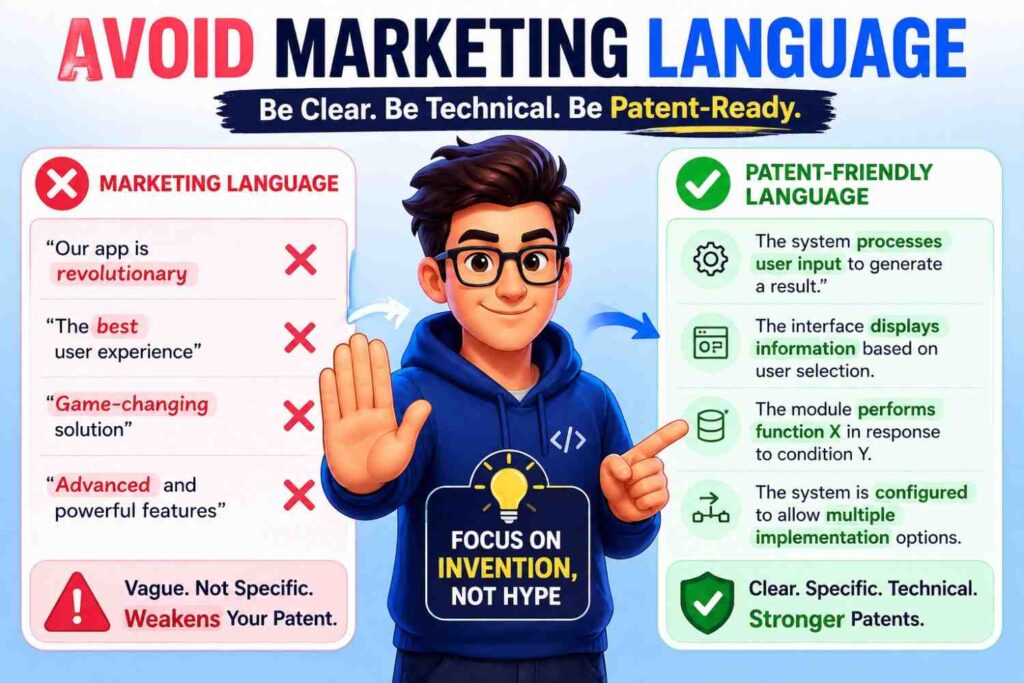
Patent specs should not sound like ads.
Avoid:
“beautiful dashboard”
“seamless experience”
“world-class interface”
“next-generation UI”
“smart screen”
“amazing user journey”
Instead, use clear technical language.
“The user interface may display…”
“The user interface may receive…”
“The user interface may cause…”
“The user interface may update…”
“The user interface may allow…”
This is formal, simple, and useful.
Marketing can live on your website. Patent specs should teach the invention.
Avoid vague UI language
Some UI words are too vague by themselves.
“Interactive.”
“Intuitive.”
“User-friendly.”
“Smart.”
“Dynamic.”
“Personalized.”
These words may be useful only if explained.
For example, instead of:
“The dashboard is interactive.”
Write:
“The user interface may receive a user selection of an output and, in response, display supporting data associated with the selected output.”
Instead of:
“The interface is personalized.”
Write:
“The user interface may display different fields or controls based on a user role, prior user action, organization setting, or risk level.”
Instead of:
“The interface is dynamic.”
Write:
“The user interface may update the displayed ranking when new input data is received.”
Specific beats vague.
Avoid overclaiming UI benefits
Do not say the UI “eliminates all errors” or “guarantees correct review.”
Use careful language.
For example:
“This may reduce review time.”
“This may help a user identify an error.”
“This may reduce repeated alerts.”
“This may improve control of a device.”
“This may allow faster review of high-priority outputs.”
These are safer and more credible.
Patent specs should not make promises that may not always be true.
Describe UI variants across platforms
If the interface can appear on different platforms, say so.
For example:
“The user interface may be provided through a web application, mobile application, desktop application, embedded display, wearable device, vehicle display, command-line tool, voice assistant, API, or other interface.”
Then:
“The interface elements may be arranged differently based on screen size, device type, user role, or operating mode.”
This helps cover responsive and multi-platform products.
Many startups begin on web and later move to mobile or embedded. Or they begin with mobile and later add web admin tools. The patent should support that when appropriate.
Describe UI layout as flexible regions
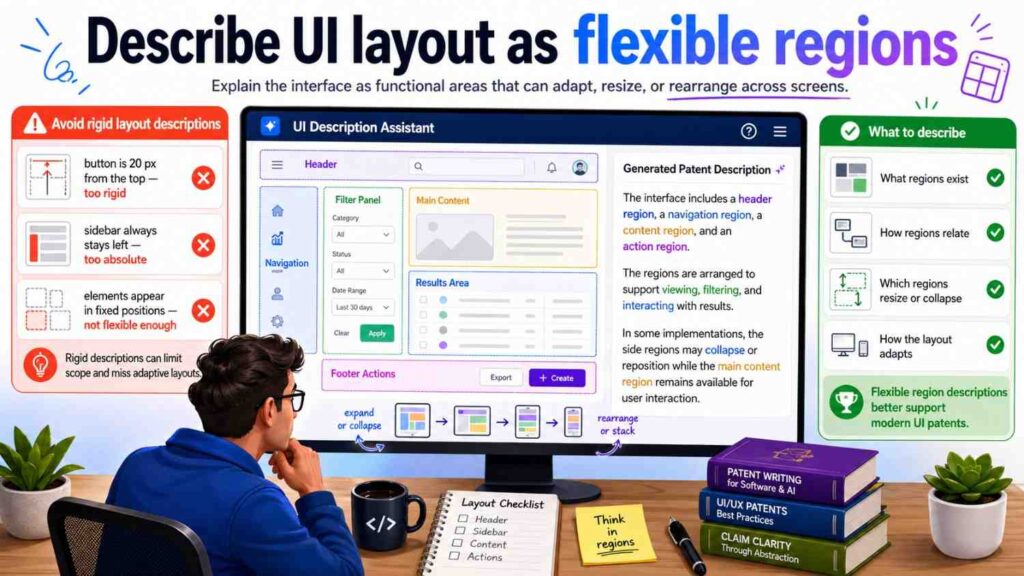
When layout matters but should not be fixed, use flexible region language.
For example:
“The user interface may include a first region for displaying an output, a second region for displaying supporting data, and a third region for receiving user input.”
This is better than saying:
“The output appears on the left, supporting data appears on the right, and buttons appear at the bottom.”
You can still say:
“In one example, the first region may be positioned above the second region.”
But keep it as an example.
Region language is useful because it describes structure without locking exact placement.
Describe charts, graphs, and visualizations by purpose
Charts are common in dashboards.
Do not just say “chart.”
Describe what the chart shows.
For example:
“The user interface may display a chart showing a change in a score over time.”
“The user interface may display a graph showing relationships between records.”
“The user interface may display a heat map showing regions associated with higher risk.”
“The user interface may display a timeline showing events that contributed to an output.”
Then explain use:
“The visualization may help a user compare outputs, identify trends, or review supporting data.”
This gives the visualization a role.
Describe tables by fields and actions
Tables often show records.
A useful UI description may say:
“The user interface may display a table of output records. Each output record may include a score, status, confidence value, source, time, assigned user, suggested action, or review state.”
Then:
“The user interface may allow a user to sort, filter, select, edit, approve, reject, or assign one or more output records.”
This supports claims around bulk review, prioritization, and workflow.
If bulk actions matter, say so:
“In some examples, the user interface may receive a bulk action applied to multiple selected records.”
Describe maps and spatial interfaces
Some systems use maps.
A patent spec may say:
“The user interface may display a map that indicates locations associated with outputs, devices, events, users, or conditions.”
Then:
“The map may show markers, regions, paths, heat levels, alerts, or status indicators.”
Then:
“The user interface may receive a selection of a map element and display data associated with the selected element.”
This can support claims around location-based review, routing, monitoring, and control.
Describe image annotation interfaces
Many AI and computer vision tools use annotation.
A user may select an object, draw a boundary, label a region, approve a detection, or correct a segmentation.
Describe this clearly.
For example:
“The user interface may display image data and receive an annotation associated with a portion of the image data.”
Then:
“The annotation may include a label, boundary, point, region, score, comment, approval, rejection, or correction.”
Then:
“The system may use the annotation to update a training record, adjust a model, generate a later output, or store a review result.”
This is strong for AI vision tools.
Describe document review interfaces
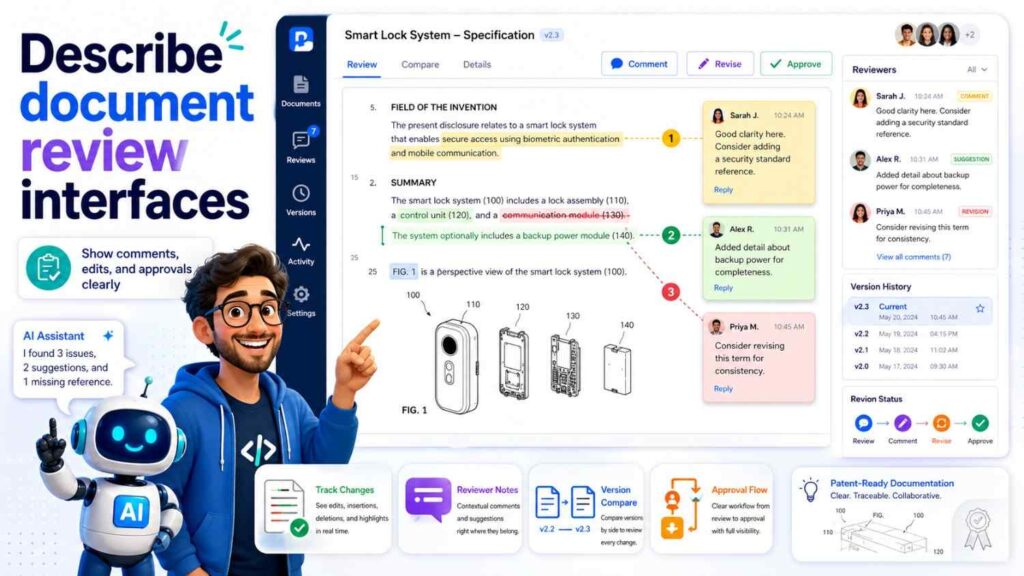
Legal tech, finance, healthcare, research, and enterprise tools often involve document review.
A spec may say:
“The user interface may display a document and an output associated with a portion of the document.”
Then:
“The output may include a label, risk score, extracted value, summary, issue, suggested edit, or explanation.”
Then:
“The user interface may highlight one or more document portions associated with the output.”
Then:
“The user interface may receive user input approving, rejecting, editing, or commenting on the output.”
This supports document AI claims.
Describe code review interfaces
Developer tools often use pull request views, code diffs, comments, risk labels, tests, and suggestions.
A spec may say:
“The user interface may display code change data and a generated output associated with the code change data.”
Then:
“The generated output may include a risk score, suggested test, explanation, affected file, suggested code change, or review comment.”
Then:
“The user interface may receive developer input accepting, rejecting, editing, or commenting on the generated output.”
Then:
“The system may use the developer input to update a rule, model, ranking, or training record.”
This is much stronger than saying “the system shows AI code review.”
Describe medical review interfaces carefully
Medical interfaces need clarity.
Avoid making broad medical claims without proper strategy. But if the invention includes a clinical UI, describe what the UI does.
For example:
“The user interface may display patient data, a risk output, supporting factors, confidence information, and one or more review controls.”
Then:
“The review controls may allow a clinician or other user to approve, reject, comment on, or escalate the risk output.”
Then:
“The system may store the review result and update a record or workflow based on the review result.”
Use “clinician or other user” if the role can vary.
Also describe privacy and permissions where relevant.
Describe financial review interfaces
Fintech tools often show risk, fraud, approval, compliance, or transaction review.
A spec may say:
“The user interface may display transaction data, a risk score, a confidence value, one or more factors associated with the risk score, and controls for approving, blocking, escalating, or commenting on the transaction.”
Then:
“The system may update transaction status based on user input received through the user interface.”
This ties the UI to a workflow.
Describe industrial monitoring interfaces
Industrial tools often show machines, sensors, alerts, trends, and work orders.
A spec may say:
“The user interface may display a machine status, sensor reading, risk score, detected condition, suggested maintenance action, and repair status.”
Then:
“The user interface may receive input assigning a maintenance task, confirming repair, changing a threshold, or suppressing repeated alerts.”
Then:
“The system may update future outputs based on the maintenance result.”
This supports end-to-end industrial workflows.
Describe robotics and autonomy interfaces
Robotics interfaces may show maps, paths, sensor data, control modes, warnings, and manual override.
A spec may say:
“The user interface may display a state of a robotic system, environment data, planned path, detected obstacle, confidence value, control mode, or safety warning.”
Then:
“The user interface may receive input approving a path, changing a mode, pausing operation, resuming operation, or overriding a control output.”
Then:
“The system may send a control signal to the robotic system based on the input.”
This connects UI to control.
Describe UI for generative AI tools
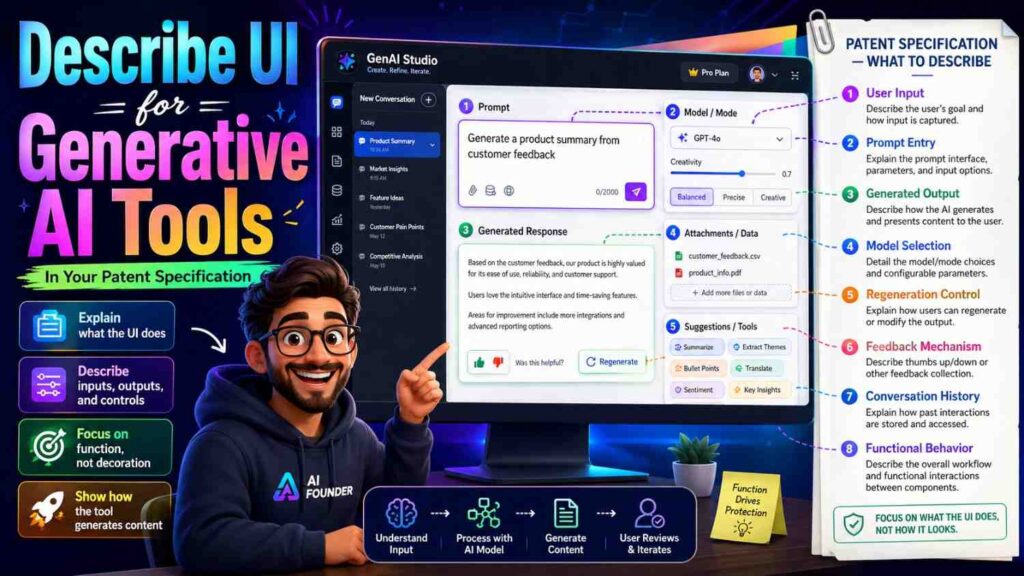
Generative AI tools often use prompts, responses, sources, edits, feedback, and validation.
A spec may say:
“The user interface may receive a user request and display a generated response.”
Then:
“The user interface may also display selected context data, source information, validation results, confidence information, or suggested follow-up actions.”
Then:
“The user interface may receive user feedback, such as an edit, approval, rejection, rating, or follow-up request.”
Then:
“The system may use the feedback to update a prompt template, context selection process, model setting, rule, or training record.”
This is more patent-ready than “chatbot interface.”
Make sure the UI description supports future continuations
A first patent filing may lead to future continuation applications.
UI descriptions can help support those later filings.
For example, your first claims may focus on model output generation. Later, you may want claims around the review interface, feedback controls, audit records, confidence display, or role-based permissions.
If the first spec describes those UI features well, you may have better support.
If it barely mentions the UI, future claims may be harder.
So describe important UI features in enough detail.
Do not make the patent only about the UI if the UI is not core. But do not ignore UI features that may become valuable later.
This balance is key.
Use UI descriptions to support fallback positions
During patent review, broad claims may face pushback.
UI features can sometimes provide useful fallback positions.
For example, if a broad claim around generating a risk score is challenged, a narrower claim may add:
Displaying a confidence value.
Displaying supporting data.
Routing low-confidence outputs to a review interface.
Receiving feedback through the interface.
Updating a model based on the feedback.
Creating an audit record based on a review action.
These features need support in the spec.
That is another reason to describe UI features with care.
Do not let UI descriptions create design-around paths
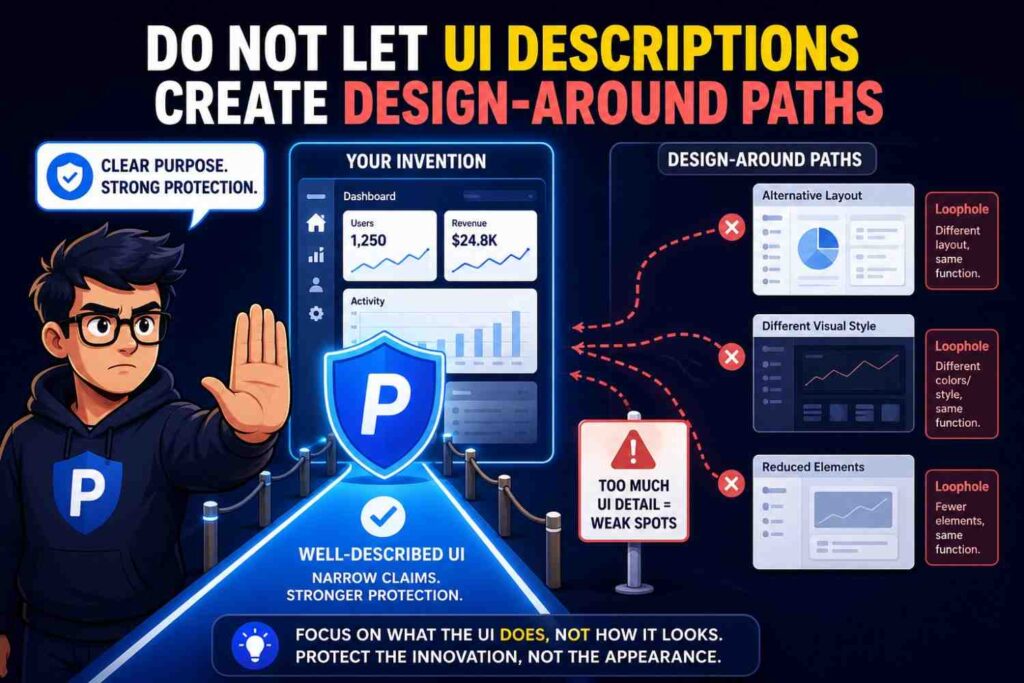
A competitor may try to avoid a patent by changing the interface.
If your patent says the invention requires a dashboard, they may use an API.
If your patent says the output appears in a chart, they may use a table.
If your patent says the user clicks a button, they may use a menu.
If your patent says the interface is mobile, they may use web.
If your patent says the alert is red, they may use an icon.
Avoid giving competitors easy paths.
Use broader functional language unless narrow details are truly important.
The “could they avoid this?” test
After drafting a UI section, ask:
Could a competitor copy the core invention and avoid the patent by changing the UI?
Could they use an API instead of a dashboard?
Could they use a list instead of a chart?
Could they use voice instead of buttons?
Could they use a mobile app instead of web?
Could they hide supporting data behind a link instead of showing it on the same screen?
Could they route actions automatically instead of asking for approval?
Could they show confidence as a label instead of a number?
If yes, the spec may need broader UI language.
The “what happens next?” test
For each UI action, ask:
What happens next?
If a user approves, what does the system do?
If a user rejects, what changes?
If a user edits, where is the edit stored?
If a user selects an item, what data appears?
If a user changes a threshold, how is it applied?
If a user gives feedback, does the model change?
If a user requests more information, what is retrieved?
This test turns shallow UI descriptions into strong technical workflows.
The “is this required?” test
For each UI element, ask:
Is this required?
Is the dashboard required?
Is the chart required?
Is the button required?
Is the confidence display required?
Is the review screen required?
Is the mobile device required?
Is the user input required?
If not, use optional language.
“In some examples…”
“May…”
“Can include…”
“One or more…”
“Such as…”
“Or another…”
These words help avoid unwanted limits.
The “future product” test
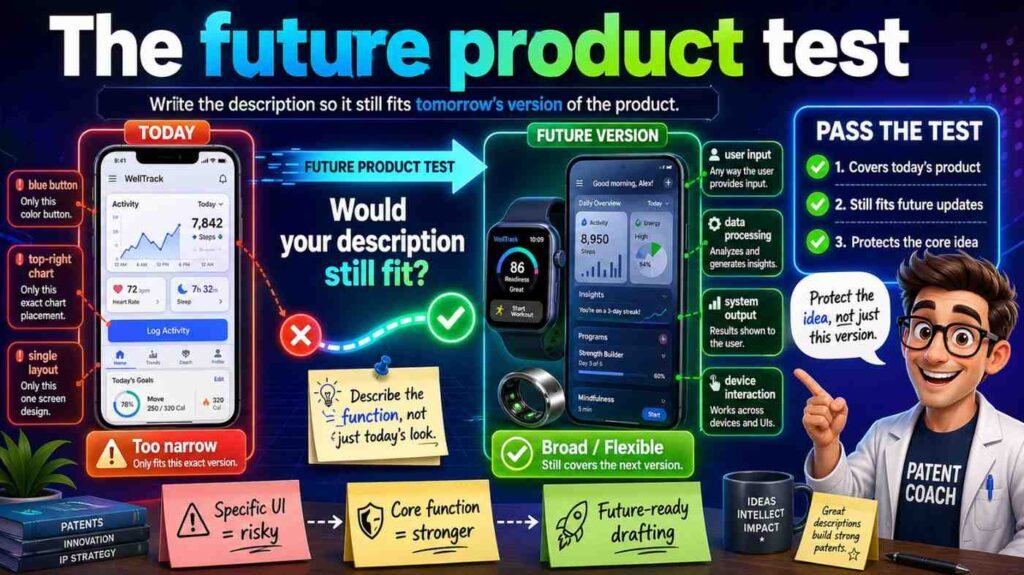
Your UI will change.
Almost every startup changes UI many times.
Screens get redesigned. Buttons move. Dashboards become reports. Reports become APIs. Mobile apps become web apps. Manual workflows become automated. Extra panels disappear. New roles appear.
A patent spec should not break when the UI changes.
Ask:
What UI features are likely to remain?
What actions are core?
What data will still be shown?
What feedback will still be collected?
What system behavior will still happen?
Focus the patent description on those durable functions.
Drafting example: weak UI description
Here is a weak version:
“The invention includes a dashboard with a red warning card at the top of the screen. The dashboard shows a risk number and a green approve button. The user clicks the green approve button to approve the result.”
This is too narrow unless those visual details are central.
It ties the invention to a dashboard, red warning card, top position, risk number, green button, and click action.
A competitor could change many of those details.
Drafting example: stronger UI description
A stronger version may say:
“In some examples, the system may provide a user interface that displays an output associated with a detected condition. The output may include a score, label, warning, confidence value, suggested action, or other result. The user interface may include one or more controls for receiving user input related to the output, such as approval, rejection, editing, assignment, escalation, or comment input. In response to the user input, the system may update a status of the output, store an audit record, send the output to a workflow system, or update later system behavior.”
This is much better.
It covers many UI forms.
It ties the UI to system behavior.
It avoids narrow visual limits.
Drafting example: AI review interface
Weak:
“The AI answer appears in a chat window with thumbs-up and thumbs-down buttons.”
Better:
“In some examples, the user interface may display a generated response and receive feedback associated with the generated response. The feedback may indicate approval, rejection, correction, rating, or another user response. The system may store the feedback and use the feedback to update a prompt, context selection process, model setting, rule, or training record.”
This version protects more than a chat window.
It captures the technical feedback loop.
Drafting example: dashboard with confidence
Weak:
“The dashboard shows a confidence percentage next to each result.”
Better:
“In some examples, the user interface may display a confidence value associated with an output. The confidence value may include a number, label, range, flag, or other measure of certainty. The system may use the confidence value to select a display format, route the output for review, request additional data, or enable or disable one or more user controls.”
This version gives confidence a role.
It supports future claims.
Drafting example: control interface
Weak:
“The screen has a start button and stop button for the robot.”
Better:
“In some examples, the user interface may include one or more control elements for controlling operation of a robotic system. The control elements may allow a user to start, stop, pause, resume, approve, reject, or override an operation. In response to input received through a control element, the system may send a control signal to the robotic system. In some examples, the system may send the control signal only when a safety condition is satisfied.”
This is much stronger.
It describes control, response, and safety.
Drafting example: UI with supporting data
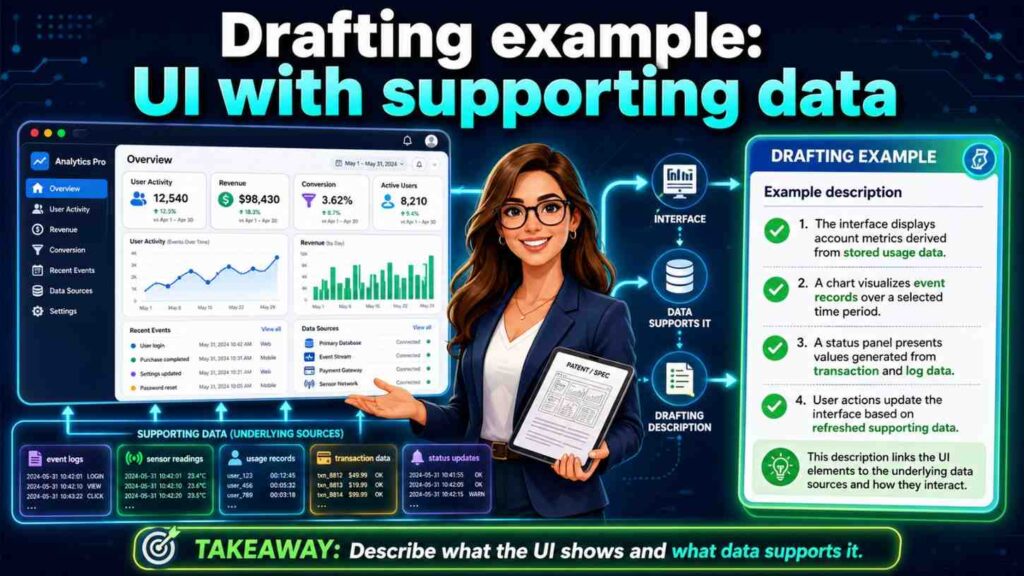
Weak:
“The screen shows sources.”
Better:
“In some examples, the user interface may display supporting data associated with an output. The supporting data may include source records, input factors, highlighted fields, ranked reasons, time-series data, images, documents, code portions, sensor readings, or other data used to generate or evaluate the output. The user interface may receive a user selection of the supporting data and display additional details associated with the selected supporting data.”
This version gives the UI depth.
Drafting example: role-based interface
Weak:
“Admins can see settings.”
Better:
“In some examples, the system may provide different interface elements based on a user role or permission. A first user role may allow viewing an output, a second user role may allow approving or rejecting the output, and a third user role may allow changing a system setting. The system may enable or disable interface controls based on the user role or permission.”
This supports secure workflow claims.
Common mistakes when describing UIs
One mistake is making the interface sound required when it is not.
Another is describing visual layout instead of function.
Another is using product-specific words that may change.
Another is failing to explain what happens after user input.
Another is ignoring non-screen outputs like APIs, messages, reports, and control signals.
Another is failing to describe feedback loops.
Another is treating screenshots as exact required designs.
Another is using marketing words instead of technical words.
Another is describing the UI separately from the system logic.
Each mistake can make the patent weaker or less useful.
How PowerPatent helps with UI-heavy inventions
UI-heavy inventions can be hard to draft well.
The founder sees the product screen.
The engineer sees the back-end logic.
The designer sees the user flow.
The patent attorney sees the claim strategy.
A strong patent spec needs all of those views.
PowerPatent helps teams capture invention details from product flows, screenshots, system notes, diagrams, and technical explanations. Smart software helps organize the material, while real patent attorneys help shape the filing so it protects the deeper invention and not just one screen.
That matters because UI details can be both useful and risky.
They can support claims, but they can also create unwanted limits.
PowerPatent helps founders move faster while still getting careful review. See how it works here: https://powerpatent.com/how-it-works
What founders should give their patent team
Do not only send screenshots.
Screenshots are useful, but they are not enough.
Send notes that explain what the UI does.
For each important screen, explain what data is shown, what the user can do, what system response happens, what is optional, what may change, and what is technically important.
For example:
“This screen shows the risk score, but the score can also be sent through an API.”
“This button approves the output and sends it to the workflow system.”
“This feedback control stores a correction that may be used to improve later model outputs.”
“This chart is not required. It is one way to show trend data.”
“This admin setting changes the threshold used in later scoring.”
“These fields are shown or hidden based on user role.”
These notes help the patent team draft better.
What engineers should explain
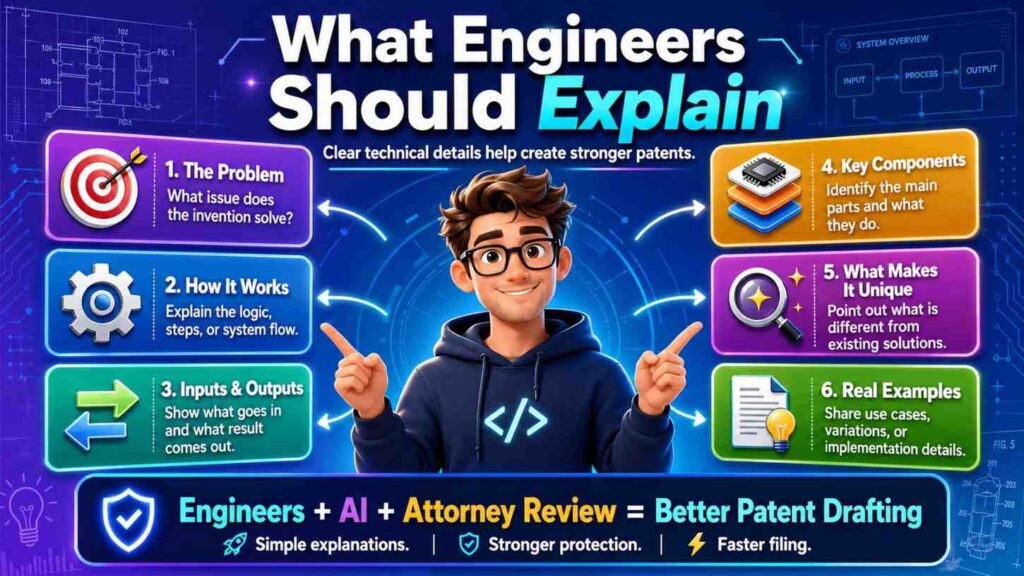
Engineers should explain the logic behind the interface.
What data feeds the screen?
Where does the output come from?
What happens when a user clicks a control?
Does user input update a database?
Does it trigger a workflow?
Does it change a model?
Does it change a threshold?
Does it send a control signal?
Does it create an audit record?
Does it affect future outputs?
This information is often more important than the visual layout.
A good UI patent description needs the back-end story.
What designers can add
Designers can help explain why certain UI flows exist.
Maybe the UI shows supporting data next to the output to reduce review errors.
Maybe it groups alerts to reduce repeated work.
Maybe it requires confirmation for high-risk actions.
Maybe it shows confidence values only when confidence is low.
Maybe it changes controls based on workflow state.
Those design reasons can be technically useful if tied to system behavior.
Designers should explain the “why,” not just the look.
Keep UI descriptions formal but simple
Good patent writing does not need to be hard to read.
Use direct language.
“The user interface may display…”
“The user interface may receive…”
“The system may update…”
“The system may store…”
“The system may send…”
“The system may cause…”
These phrases are simple and clear.
Avoid long, tangled sentences.
A readable patent spec is easier to review and easier to use later.
Final thoughts
User interfaces are important in many modern inventions.
They show outputs. They collect inputs. They guide review. They control devices. They capture feedback. They explain results. They trigger workflows. They help users trust and act on complex system outputs.
But a patent spec must describe them carefully.
Do not let one screen become the whole invention.
Do not make optional UI elements sound required.
Do not over-focus on colors, layout, or button placement unless those details matter.
Describe what the interface does, what data it shows, what input it receives, and what the system does next.
Tie the UI to technical value.
Explain feedback, review, confidence, permissions, audit records, alerts, actions, and system updates when those features matter.
A strong UI description protects the product without trapping the patent inside one design.
For founders, this is a big deal. Your product interface will change. Your patent should protect the invention behind it.
If you are building software, AI tools, hardware control systems, or any product where the user interface plays a key role, PowerPatent can help you turn your screens, flows, and technical logic into a stronger patent filing.
See how PowerPatent works here: https://powerpatent.com/how-it-works